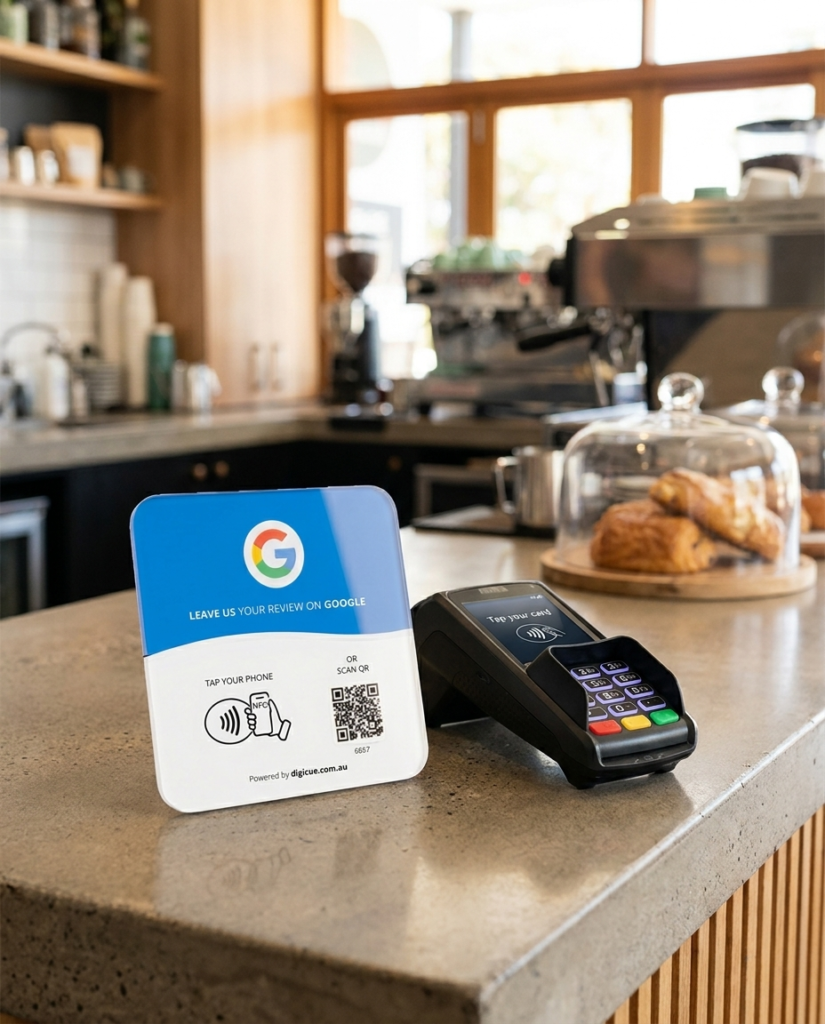
Products ship inert. You bring them to life yourself in the Customer Portal at tap.digicue.com.au, using the code printed on the plate. Nothing is sent to Digicue.
The plate, the phone you will test with, and the link you want it to open. For review products that is your Google review link; for Connect products it is the details for your Hub.
Extra plates in a pack are quicker because your account already exists after the first one.
A phone that reads NFC, or its camera for the QR code
Your Google review link or Connect Hub details
In the portal
Six short steps
01
Identify the unit
Tap or scan the plate. The portal recognises which unit you are holding.
02
Confirm the code
Enter the activation code printed on the plate.
03
Owner account
Sign in, or create one. One account holds every unit you own.
04
Destination
Paste your Google review link, or set up your Connect Hub.
05
Save
Wait for the saved confirmation before you close the page.
06
Test
Tap it yourself. When the right page opens, place it.
Activation questions
The plate opens the portal instead of my page.
It has not been activated yet, or the save did not finish. Sign in, open the unit and check its destination.
Can I change the destination later?
Yes, any time, in the portal. The plate opens the new destination from the next tap.
I have five plates. Do I activate each one?
Yes. Each plate is its own unit with its own code. After the first, the portal asks only for the next code.
Which phones work?
Works with most recent iPhones and Android phones that read NFC. Every plate and card also carries a printed QR code, so a phone camera works as the fallback. The phone needs an internet connection to open the link.
Ready? Tap your plate.
Tapping or scanning an unactivated plate opens the portal at the right step. Or open it directly.