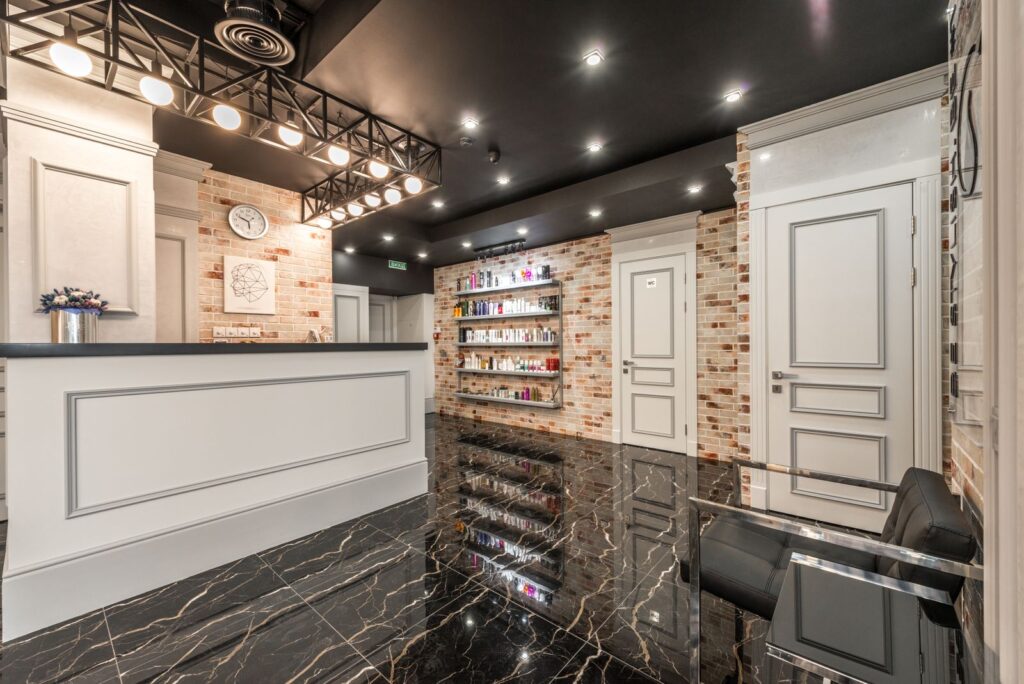
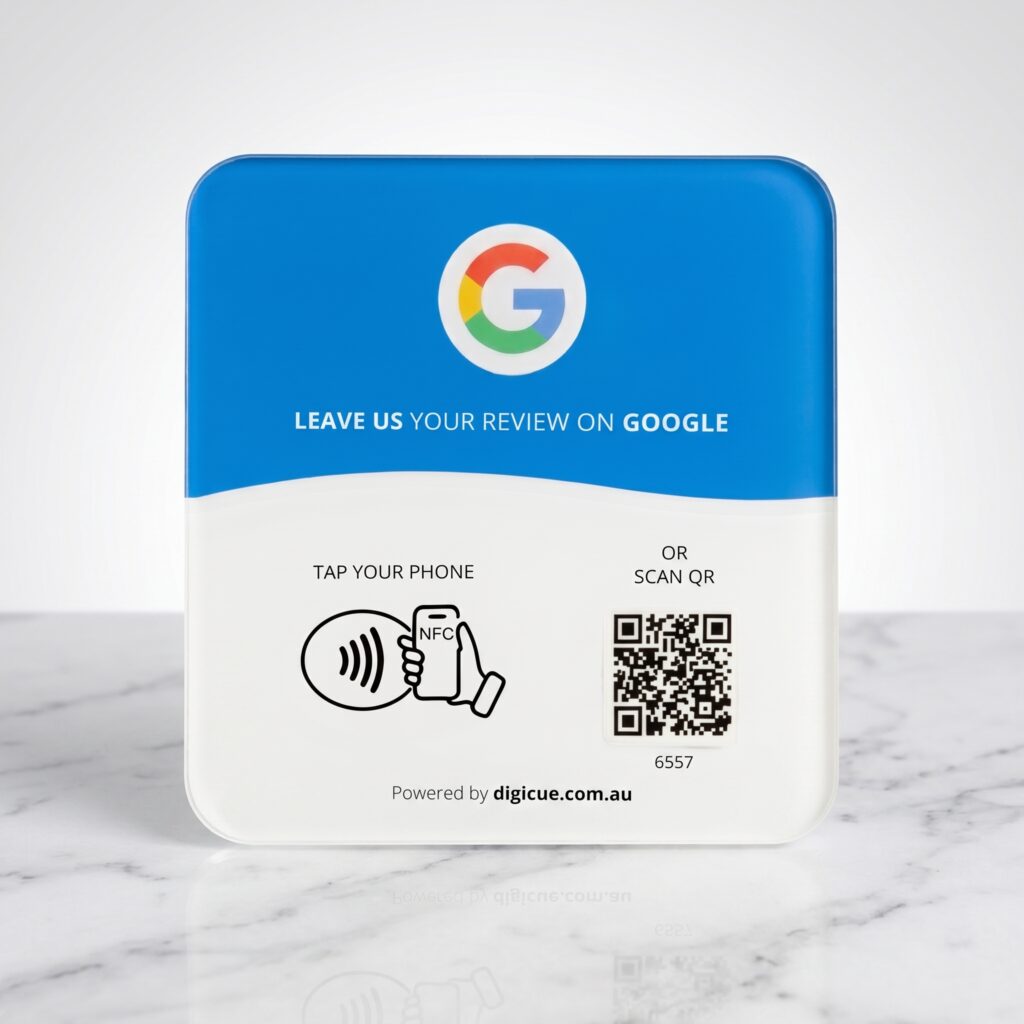
Patients check in and out at reception. Feedback is optional, and the plate should never ask about treatment. It simply opens the Google review form for your practice.
Two or three spots that suit this setting. Pick the one where customers naturally pause.
01
Reception desk
At the payment and rebooking point, facing the patient.
02
Waiting area counter
If payment happens elsewhere, a plate where patients collect paperwork or book follow-ups.
A neutral invitation
A neutral line for reception: “If you’d like to leave feedback about your visit on Google, the plate opens the review form.” Do not ask about health outcomes or treatment details.
The plate does the asking. Customers who want to share their experience can; nobody is pressed, and no rating is suggested or pre-selected.
Keep the ask optional and after the interaction
No incentives or gated reviews
No Digicue app required. Customers need to be signed in to Google to post a review.
Choose your product and pack. Orders placed before the daily cut-off are dispatched from Melbourne the same business day.
02
Receive
Each plate arrives with an adhesive mounting strip, its activation code printed on the plate, and a quick start card.
03
Activate
Tap or scan the plate. The Customer Portal at tap.digicue.com.au opens. Confirm the activation code, sign in or create an owner account, and add the destination customers will open. Allow about five minutes.
04
Place
Test it with your own phone, then put it where customers can easily see and reach it.
Questions from this industry
Is patient information involved?
No. The plate opens Google’s public review form. Digicue records only that the plate was tapped or scanned, not who did it.
Can we turn it off during certain hours?
The plate has no power or switch. Move it out of sight if you prefer, or update the destination in the Customer Portal.
Which product suits a multi-room practice?
One plate per reception point. A 3 or 5 pack covers several desks, each shown separately in the portal.
Ready to set one up?
Choose a pack, activate it when it arrives, place it where customers finish up.